The frustration of Face ID not working can disrupt your day. Whether your face isn’t being recognized or it simply won’t activate, this guide will help.Re-scanning your face or resetting Face ID settings can often fix the problem.
Make sure nothing is blocking your face. Check if your iPhone is up to date with the latest software. Sometimes, Face ID can be affected by changes in your appearance, like a new hairstyle or facial hair.
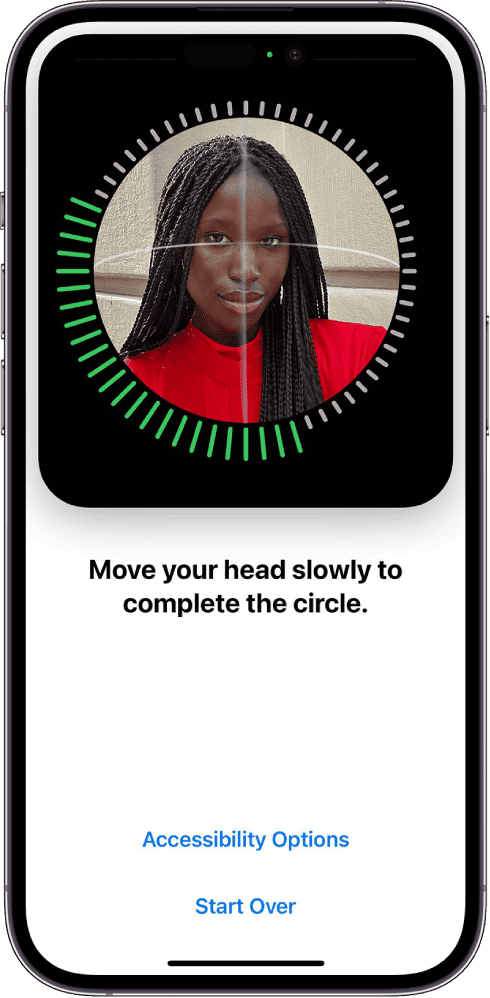
Finally, consider your environment. Low light or a dirty sensor might interfere with Face ID. Take a few seconds to check these factors and you’ll be unlocking your iPhone with ease again.
Unlocking Face ID Issues: A Troubleshooting Guide
Check Your Settings and Surroundings
Before diving into complex fixes, ensure Face ID is enabled and set up correctly. Go toSettings > Face ID & Passcode. Check if any features like “Require Attention for Face ID” or “Attention Aware Features” might be interfering. Also, make sure nothing is covering your face or the TrueDepth camera (the notch at the top of your screen). Clean the camera gently with a microfiber cloth if needed.
Restart and Update
A simple restart can often resolve temporary glitches. Hold down the power button and either volume button until the “slide to power off” slider appears. If that doesn’t work, try a forced restart. This differs depending on your iPhone model. Search online for specific instructions for your device.
Next, check for iOS updates. Go toSettings > General > Software Update. Install any available updates, as they may contain bug fixes related to Face ID.
Reset Face ID
If the issue persists, you can reset Face ID and set it up again. Go toSettings > Face ID & Passcode > Reset Face ID. This will delete your existing facial data, so you’ll need to go through the setup process again.
Hardware Issues
If all else fails, there might be a hardware problem with the TrueDepth camera. In that case, contacting Apple Support or visiting an Apple Store is your best option. They can diagnose the issue and offer repair or replacement if necessary.
Troubleshooting Steps
Key Takeaways
Understanding Face ID Technology
Face ID is Apple’s facial recognition technology used for unlocking devices and ensuring security in applications like Apple Pay. It relies on advanced hardware and sophisticated algorithms.
The Basics of Face ID and Security
Face ID uses a combination of hardware and software to recognize your face.TrueDepth camerasystem plays a key role. It consists of aflood illuminator,infrared camera, anddot projector. The flood illuminator first lights up your face, even in the dark. The dot projector then creates over 30,000 invisible dots on your face to map its unique shape.
After capturing this detailed map, the infrared camera takes an infrared image. This data is then processed and compared with the facial data stored on the iPhone. This system ensures a high level of security as no two faces are exactly the same. The technology is designed to adapt to changes, like growing a beard or wearing glasses, making it flexible and reliable.
Facial Recognition Components
Face ID relies on several key components for its operation. TheTrueDepth camerais essential. It is located in thenotchat the top of the iPhone screen. The notch houses all the necessary sensors and cameras. Theinfrared lightmakes it possible to recognize the user’s face in low light or even complete darkness.
Another important component is theproximity sensor. It detects how close your face is to the iPhone. Theambient light sensormeasures the light around you to adjust the brightness. These sensors work together to ensure Face ID is both fast and accurate.
Face ID technology also emphasizes privacy. The facial data never leaves the device and is stored securely in theSecure Enclave. This ensures that your personal information remains protected without compromising convenience.
Troubleshooting Common Issues
Face ID problems can often be fixed by troubleshooting steps such as adjusting settings, resolving unlocking challenges, or seeking support when necessary.
Setting Up Face ID
Starting with the basics, make sure your Face ID is set up correctly. Navigate toSettings>Face ID & Passcode. Enter your passcode, then follow the prompts to scan your face. Hold your device at eye level and look directly at the screen. Ensure the area is well-lit, and your face is unobstructed.
If Face ID is not responding, try resetting it. Go toSettings>Face ID & Passcode, then tapReset Face ID. Re-scan your face following the same steps as before. This process can solve many setup-related issues.
Common Unlocking Challenges
Sometimes, Face ID might not work due to common unlocking challenges. First, check if something is covering your face. Sunglasses, masks, or scarves can interfere with face recognition. Adjust these items or remove them when unlocking your device.
Also, clean the front camera. Dirt or smudges on the camera lens can affect Face ID performance. Use a soft, lint-free cloth to clean it gently. Another tip is to keep your device updated. Head toSettings>General>Software Updateto see if an update is available.
Repair and Support Options
If troubleshooting steps do not resolve your issue, it may be time to seek professional help. Visit anApple Storeor contactApple Support. Before doing so, back up your data to prevent any loss.
In some cases, a hardware problem might be the cause. An authorized technician can test and diagnose the issue. If necessary, they can repair or replace faulty components. Consider afactory resetonly as a last resort, as it will erase all data.
These steps can help address various Face ID issues, ensuring better functionality for your device.
