Customizing the watch faceon an Apple Watch allows for a personalized touch that can adapt to one’s style and preferences. The process is straightforward, offering a range of options from classic looks to more modern designs. With a selection of pre-installed faces and the option to add new ones, users can select the perfect face for any occasion. Adjusting the watch face to suit various needs or to match different outfits can be done with a few simple taps and swipes.
Apple Watch users can tap into advanced customization features for a more tailored experience. They are able to choose complications which are small widgets displaying quick information. Through these, the watch face transforms into a command center showing weather updates, calendar events, activity levels or even stock tickers. These modifications also offer one-tap access to apps, making the Apple Watch an even more powerful tool for day-to-day use.
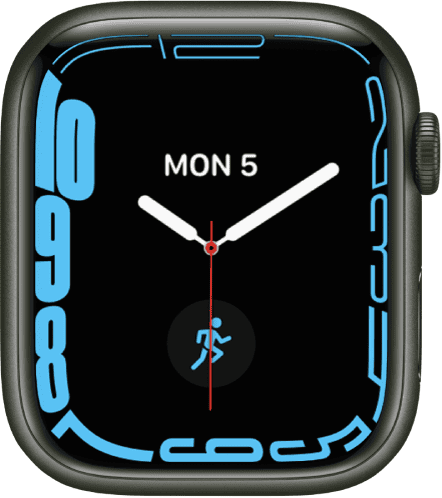
Personalizing Your Apple Watch
Changing Your Watch Face Directly on Your Watch
Changing Your Watch Face Using the Apple Watch App on Your iPhone
Enabling Swipe to Switch Feature
If you want to switch between watch faces by swiping, you’re able to enable this feature:
Managing Watch Faces
Tips and Tricks
You can create a unique and personalized experience by choosing from a wide variety of watch faces and customizing them to your liking.
Key Takeaways
Customizing Watch Faces
Apple Watch offers a variety of ways to customize watch faces to suit personal preferences and needs. Users can choose from a range of watch faces and modify them with different complications, colors, and styles. This section walks through the process of selecting and adding new watch faces, adjusting complications for quick access to information, and personalizing colors and styles to match one’s aesthetic.
Choosing and Adding New Watch Faces
Users can add new watch faces to their Apple Watch by pressing firmly on the current watch face to enter the editing mode. Swiping left to the end reveals a “+” button, which leads to a list of watch faces. They can browse this list using the Digital Crown or by swiping up and down on the screen. TappingAddattaches the selected face to the watch face collection. For a more categorized browsing experience, they can tap on collections likeNew Watch FacesorArtistsin the Face Gallery of the Watch app.
Adjusting Watch Face Complications
Apple Watch complications provide quick access to apps, contacts, and more right from the watch face. After choosing a watch face, users can customize its complications. To do this, they should touch and hold the watch face to enter the editing mode. Swiping left or right selects the face, and tappingEditallows changes to complications. By using the Digital Crown or swiping, users can select the complication they want to change and scroll through available options.
Personalization with Color and Style
Watch faces like theTypograph,Infograph, andCaliforniaoffer customizable options that allow users to change colors and style elements for a personalized look. In editing mode, they can swipe to theColorsection and pick from a palette of colors using the Digital Crown or by tapping their preferred option. Similarly, in theStylesection, users can modify dial details like the numerals to their liking choosing from styles such asPills,Roman, orArabic Indic.
Advanced Features and Tips
Unlocking the full potential of Apple Watch faces involves more than just aesthetics. Advanced features and customization offer practical benefits, particularly for activity tracking, collection management, and accessing third-party options.
Utilizing Watch Faces for Activity and Health
The right watch face can serve as a dashboard for health and fitness. Apple Watch users can select faces that display activity rings, heart rate, and workout stats. By using complications, individuals can glance at key metrics like remaining battery life or their next scheduled event. For health monitoring, the Series 8, SE, and Ultra models provide temperature sensing, which can be integrated into the watch face display.
Managing and Organizing Watch Face Collections
Organizing a watch face collection streamlines access to different features. Users can curate a ‘My Faces’ library within the Watch app on iPhone, allowing for quick switching via swipes on the watch itself. They can reorder faces to keep the most used ones easily reachable. It’s also possible to sync selected faces across different models, ensuring consistent accessibility regardless of which Apple Watch they wear.
Downloading and Using Third-Party Watch Faces
While Apple provides a variety of faces, third-party options expand customization further. Through the App Store, users can download apps like ‘Facer’ to explore additional free and paid watch faces. After downloading a third-party app, syncing new watch faces with the Apple Watch is straightforward. It allows users to personalize their device to an even greater degree with unique designs and functionalities not available through the default options.
