Target Disk Mode is a handy feature for Mac users who need to transfer files between computers quickly.You can use Target Disk Mode to turn one Mac into an external drive for another Mac, makingdata transferand troubleshooting easier.This tool is built into macOS and works with most Mac models.
To use Target Disk Mode, you’ll need two Macs and a compatible cable. The process is simple: start up one Mac in Target Disk Mode, connect it to the other Mac, and transfer files as if you were using an external hard drive. This method is often faster than using cloud storage or other network-based file sharing options.
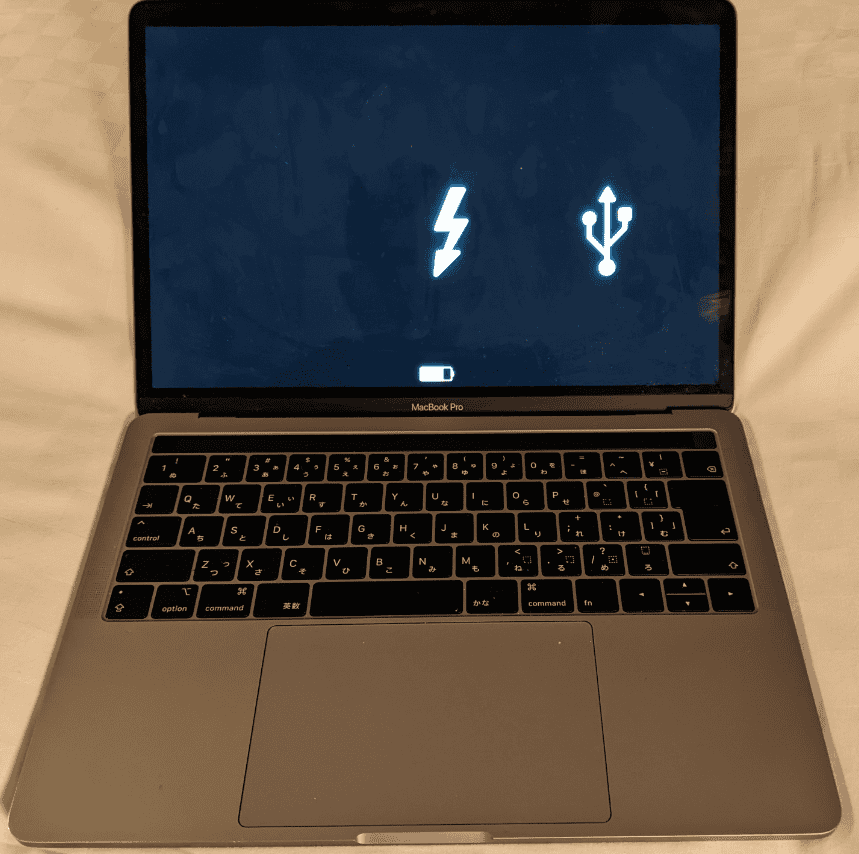
Target Disk Mode is useful for many tasks. You cantransfer large filesquickly,migrate datato a new Mac, or even boot from another Mac’s drive totroubleshoot issues. It’s a powerful tool that every Mac user should know how to use.
Target Disk Mode: Using Your Mac as an External Drive
Target Disk Mode is a special feature on Macs that allows you to use one Mac as an external hard drive for another Mac. This can be extremely useful for transferring large amounts of data quickly, troubleshooting a Mac that won’t start up, or accessing files on a Mac with a broken screen.
How to Use Target Disk Mode
1. Connect the Macs:
2. Start the Mac in Target Disk Mode:
3. Access the Drive:
When to Use Target Disk Mode
Here are some common scenarios where Target Disk Mode can be helpful:
Important Notes
Target Disk Mode vs. File Sharing
While both Target Disk Mode and file sharing allow you to access files on another Mac, they have key differences:
Target Disk Mode is ideal for situations where you need fast, direct access to the entire hard drive, while file sharing is better for ongoing access with controlled permissions and better security.
Understanding Target Disk Mode
Target Disk Modelets you use one Mac as an external drive for another Mac. This feature simplifies file transfers and troubleshooting between Macs.
Concept and Usage
Target Disk Mode transforms a Mac into an external hard drive. This allows you to access its files from another Mac. You can use it totransfer large amounts of dataor troubleshoot issues on a non-working Mac.
To use Target Disk Mode, connect two Macs with a compatible cable. The target Mac appears as an external drive on the host Mac. You can then drag and drop files between the two devices.
This mode is particularly useful for data migration or recovery. It provides direct access to files when a Mac won’t boot normally.
Requirements for Target Disk Mode
To use Target Disk Mode, you need:
For Intel-based Macs, you canstart Target Disk Modeby holding the T key during startup. Macs with Apple Silicon require a different method.
Ensure both Macs are powered on and running compatible MacOS versions for the best results.
Compatible Mac Models
Most Mac models support Target Disk Mode. This includes:
Newer Macs with Apple Silicon(M1 chip or later) use a slightly different process. They require you to select Target Disk Mode from the Startup Disk settings.
Intel-based Macs from the past decade are generally compatible. Check your Mac’s specifications if you’re unsure about compatibility.
Remember, the connecting cable must match the ports on both Macs. Use Thunderbolt or USB-C cables as needed.
Setting Up Target Disk Mode
Target Disk Mode lets youaccess fileson one Mac from another. This feature is useful for data transfer and troubleshooting. Here’s how to set it up and use it effectively.
Step-by-Step Process
Connect the two Macs using aThunderbolt or USB-C cable.
On the Mac you want to use as a disk, restart or turn it on.
For Intel Macs: Hold the T key immediately after hearing the startup chime.For Apple Silicon Macs: Press and hold the power button until you see startup options.
On Apple Silicon Macs, select “Target Disk Mode” from the menu.
The target Mac’s screen will display a disk icon, indicating it’s in Target Disk Mode.
On the other Mac, the target Mac should appear as an external drive in Finder.
You can now access files on the target Mac as if it were an external hard drive.
Startup Options and Key Combinations
For Apple Silicon Macs, you can also set Target Disk Mode as the default startup option:
FileVaultmay need to be disabled for full access in Target Disk Mode.
Troubleshooting Common Issues
If Target Disk Mode isn’t working:
Check your cable connection. Use a different cable if necessary.
Ensure both Macs are compatible with the same connection type.
Try a different port on both Macs.
Disable FileVault on the target Mac if you may’t access files.
Reset theSystem Management Controller(SMC) on Intel Macs.
If you have a firmware password set, you’ll need to enter it to use Target Disk Mode.
For persistent issues, try booting into Recovery Mode and using Disk Utility to check for drive problems.
Transferring Data Using Target Disk Mode
Target Disk Mode enables easy file transfer between Macs. This method allows you to access one Mac’s hard drive from another Mac, simplifying data migration and backup processes.
Using Finder for File Transfer
To use Finder for file transfer, firstput one Mac in Target Disk Mode. Connect both Macs with a compatible cable. On the other Mac, open a Finder window. The Target Disk Mode Mac appears as anexternal drive.
Drag and drop files between the two Macs. This works well for transferring specific folders or files. For large transfers, consider using an external hard drive as an intermediate step.
Remember to eject the Target Disk Mode Mac when finished. Drag its icon to the Trash or use the eject button in Finder.
Leveraging Migration Assistant
Migration Assistant offers a more comprehensive data transfer solution. It moves your entire user account, including apps and settings.
To use Migration Assistant with Target Disk Mode:
Migration Assistant transfers your data, apps, and settings. This process may take several hours depending on the amount of data.
Backup Strategies with Time Machine
Time Machine works well with Target Disk Mode for backups. Connect an external drive to your Mac and set it up as a Time Machine backup destination.
To restore from a Time Machine backup using Target Disk Mode:
This method allows you to restore your entire system or select specific files and folders.
Advanced Usage and Considerations
Target disk mode offers powerful capabilities beyond basic file transfers. It enables secure data access and performance optimization across different Mac models and external devices.
Security and Data Protection
When using target disk mode, protect your data carefully. Alwayseject the target diskproperly before disconnecting. This prevents data corruption or loss.
For Intel-based Macs, set a firmware password to restrict unauthorized access. Apple Silicon Macs have built-in security features that prevent target disk mode without user authentication.
Consider encrypting sensitive files before transfer. FileVault full-disk encryption adds an extra layer of protection for your entire drive.
Performance Optimization
Choose the fastest available connection for optimal transfer speeds.Thunderbolt 3 offers the best performanceon supported Macs, followed by USB 3.0 and FireWire.
Close unnecessary apps on both Macs to free up system resources. This can significantlyboost transfer speeds.
For large transfers, connect your Macs to power to prevent unexpected shutdowns.
Alternative Data Transfer Methods
While target disk mode is versatile, other options may suit specific needs better:
For system migrations, Apple’s Migration Assistant offers a guided process that can be simpler than manual transfers via target disk mode.
Frequently Asked Questions
Target Disk Mode on Mac can be complex. Here are answers to common questions about using this feature effectively and safely.
How do I initiate Target Disk Mode on a Mac with Apple silicon?
To start Target Disk Mode on an Apple silicon Mac:
What steps are required to connect a Mac to a PC using Target Disk Mode?
Connecting a Mac to a PC in Target Disk Mode requires extra software:
