Turn your iPad into a second display for your Mac with Sidecar, a feature that offers a larger workspace. Sidecar seamlessly extends or mirrors your Mac’s desktop onto your iPad, allowing for a dual monitor setup with the portability of an iPad. This guide covers the system requirements, setup process, and tips for making the most of Sidecar. To set up Sidecar, ensure your Mac and iPad are signed in to iCloud with the same Apple ID, have Bluetooth and Wi-Fi enabled, and are within 10 meters of each other.
With just a few clicks, you’re able to wirelessly connect your iPad to your Mac or use a cable for simultaneous charging. Once connected, you can drag windows to the iPad, display tool palettes, and use the Apple Pencil for tasks that require a touch interface. This versatile setup allows you to boost productivity and creativity by using the strengths of both devices.
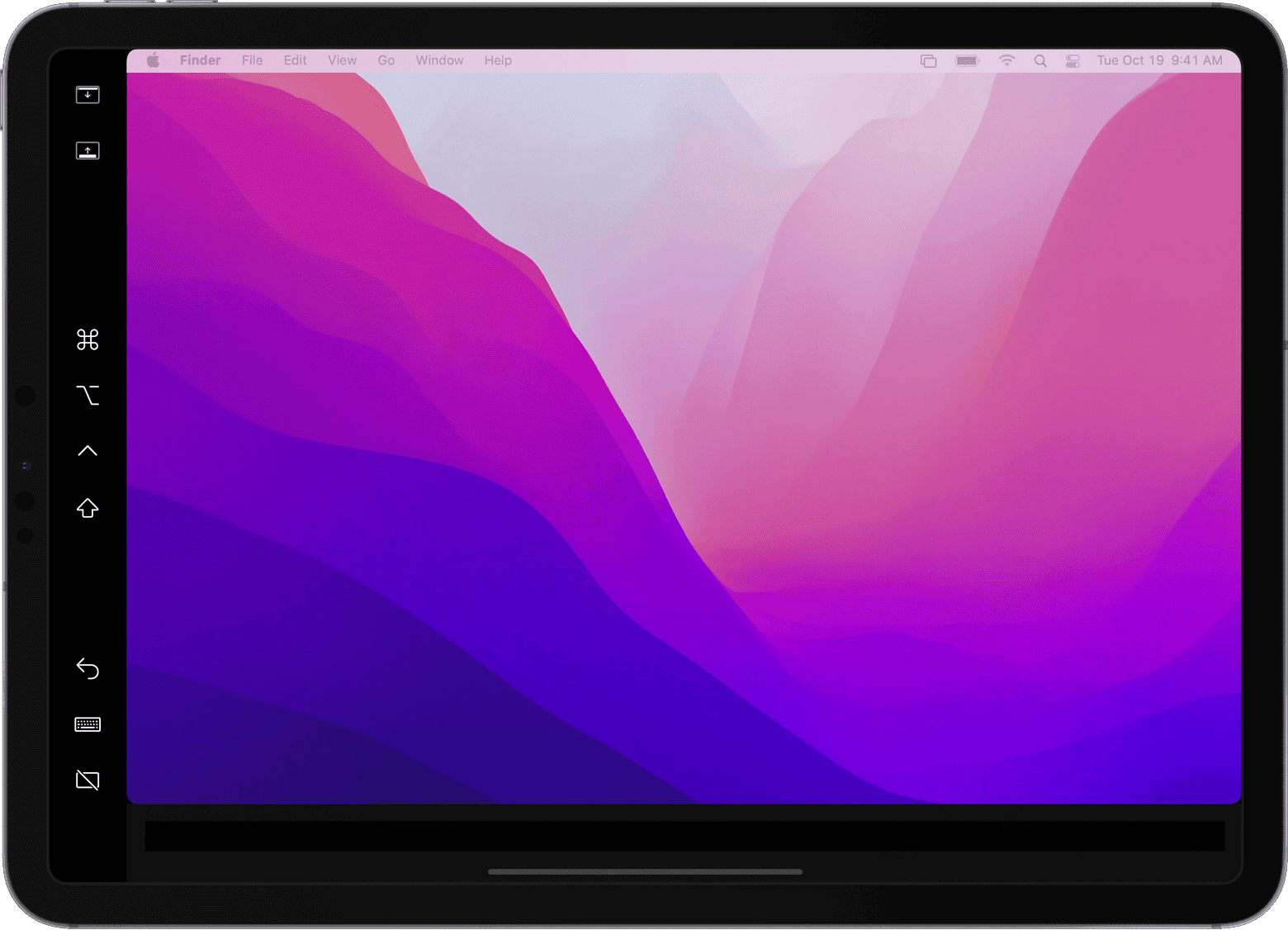
Extend Your Mac’s Desktop: Sidecar with iPad
System Requirements
Connection Types
Setting Up Sidecar
Using Sidecar
Tips and Troubleshooting
Additional Benefits of Sidecar
Key Takeaways
Setting Up iPad Sidecar
Sidecar harnesses the power of aniPadto extend or mirror a Mac’s display. It boosts productivity by providing extra screen real estate. Let’s set it up.
System Requirements and Compatibility
For Sidecar to work, you need acompatible Macand iPad. Macs should run macOS Catalina or later, and iPads require iPadOS 13 or higher. Sidecar supports a variety of devices including:
Both devices must share the same Apple ID with two-factor authentication enabled. They need to connect to the same Wi-Fi network or link viaBluetooth, and a USB-C cable can be used for a direct connection.
Enabling Sidecar on iPad and Mac
To use Sidecar, enable it on both the iPad and Mac. On the Mac, go to:
On the iPad, access the settings and ensure it’s ready to connect as a second display. Check the devices are linked to the same Apple ID.
Connecting Devices Wirelessly and Via USB
To connect wirelessly, ensure Wi-Fi and Bluetooth are enabled on both the Mac and iPad. They should be near each other for Sidecar to work without hiccups. Alternatively, for a wired connection, use a USB-C cable to link the devices. This method is also a way to charge the iPad while using Sidecar. Once connected, use the menu bar orControl Center on Macto manage the Sidecar settings and choose whether to mirror or extend the display to the iPad.
Using iPad as a Secondary Display
Using an iPad as a secondary display for a Mac boosts productivity by expanding the desktop area. It allows for more space to arrange windows and apps while working. This functionality, called Sidecar, also integrates features like theTouch Bar, Sidebar, and support for Apple Pencil, offering a powerful way to interact with Mac apps.
Managing Sidecar Settings and Sidebar
Sidecar settings are adjustable through the Mac’s System Preferences under the Sidecar section. Here, one can decide where the Sidebar appears on the iPad screen and customize its buttons. The Sidebar gives quick access to modifier keys and other shortcuts, enhancing the workflow without needing a keyboard.
Utilizing Touch Bar and Gesture Controls
When Sidecar is active, the virtual Touch Bar can appear on the bottom edge of the iPad screen, if the Mac doesn’t have a physical Touch Bar. This feature provides shortcuts related to the active window on the Mac. Users can also make use ofmulti-touch gestureson the iPad to control the Mac, which can include pinching, swiping, or tapping to execute various commands.
Drawing and Sketching with Apple Pencil
The iPad transforms into a drawing tablet when paired with the Apple Pencil. It reacts to pressure and tilt, allowing for precise sketching, drawing, and writing in supported Mac applications. Artists and designers can benefit from this setup, using the iPad and Apple Pencil as a graphics tablet for creative tasks on the Mac.
