Location Services on an iPhone are designed to provide apps with your location information using a combination of cellular, Wi-Fi, GPS, and Bluetooth signals. When turned on, these services allow apps like Maps and Weather to deliver personalized content based on where you are. For example, Location Services can enable your weather app to show the forecast in your current city or allow a social media app to tag your photos with a location.
Users have control over their Location Services settings, including the ability to grant or deny permission on a per-app basis. This ensures that personal location data is shared only with the apps they trust. Furthermore, for those concerned with privacy or battery life, Location Services can be turned off entirely, although this might limit the functionality of some apps that rely on this information.
How Location Services Works
Location Services is a core feature on iPhones, enabling apps and services to use your location data to provide various features. This data is gathered using GPS, Bluetooth, Wi-Fi hotspots, and cell towers, giving apps a more precise understanding of your location.
How does Location Services improve my iPhone experience?
Location Services enhances your iPhone experience in many ways:
Privacy considerations with Location Services
Apple prioritizes user privacy. Location Services is designed with privacy in mind, giving you control over which apps can access your location data and when. you may choose to allow access always, only when using the app, or never. Additionally, you can enable or disable Location Services entirely in your iPhone’s settings.
How to manage Location Services on your iPhone
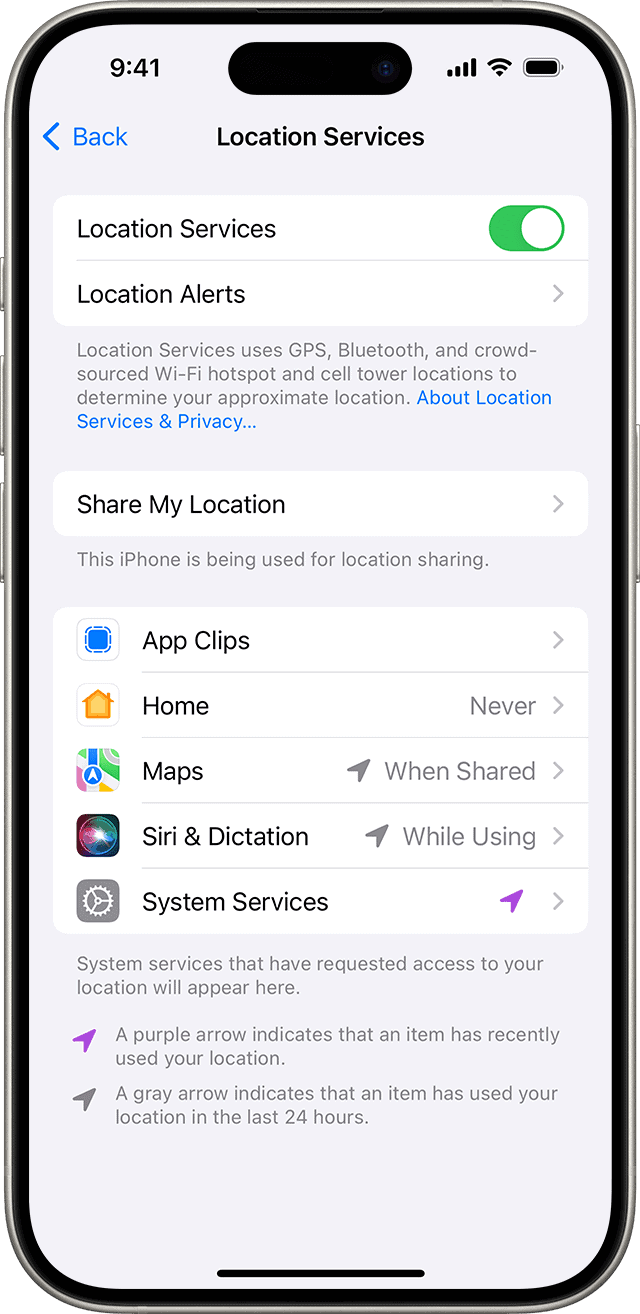
Understanding the different Location Services icons
Is it safe to leave Location Services on?
Yes, it’s generally safe to leave Location Services on, as long as you’re comfortable with the apps you’ve granted access to your location data. Apple has strict privacy policies in place to protect your data, and you may always adjust your settings to control which apps can access your location.
When should I turn off Location Services?
You might consider turning off Location Services if you’re concerned about battery life or privacy. However, disabling Location Services will limit the functionality of certain apps and features.
Ultimately, the decision to use Location Services is a personal one. By understanding how it works and managing your settings, you can strike a balance between convenience and privacy.
Key Takeaways
Understanding Location Services
Location Services on an iPhone lets apps know where you are to provide location-specific features. Here’s how it works and how yourprivacy is protected.
Defining Location Services and Privacy
Location Services is a setting on iOS that uses GPS, Bluetooth, and Wi-Fi hotspots to determine your iPhone’s location. Apple ensures your privacy with options that control how much location information is shared.
Privacy settings:
How GPS and Wi-Fi Play a Role
GPS and Wi-Fi hotspots work together to pinpoint your location. GPS provides accurate outdoor locations while Wi-Fi enhances this indoors.
Location accuracy:
Permissions and App Access
Apps on iPhone need your permission to use Location Services. When you install a new app, it may ask for access to your location.
Permissions:
Security is a priority, so iOS lets you manage these settings at any time. This helps keep your location private and your iPhone secure.
Managing Location Services
Location Services on an iPhone or iPad lets you control which apps have access to your location data. you may manage these settings to enhance your device’s battery life and protect your privacy.
Controlling Access on an App-by-App Basis
Settings App:To change Location Services for individual apps, open theSettings app. Then tap ‘Privacy’ and ‘Location Services’. Here, you’ll see a list of installed apps. Select any app to update its location access. You can choose ‘Never’, ‘Ask Next Time’, ‘While Using the App’, or ‘Always’ for location permission.
Tips for Conserving Battery and Security
To conserve battery and enhance security, limit location access for apps that don’t require it to function. For instance, if a weather app only needs to know your location once, select ‘Allow Once’. Use ‘System Services’ to disable options like ‘Location-Based Apple Ads’, which are not crucial. Turning off ‘Share My Location’ in ‘Find My’ can also save battery life.
Troubleshooting Common Issues
When location services do not work correctly, you can reset them. Go to ‘Settings’, tap ‘General’, and then ‘Reset’. Choose ‘Reset Location & Privacy’ to set location permissions to their defaults. For other issues:
Remember, if you need emergency help, keeping Location Services active lets your device makeemergency callsand sends accurate location data to responders.
